Add App Shortcuts in Flutter: A Step-by-Step Quick Actions Guide
SR
Sabin Ranabhat
Published June 29, 2025•2 min read

⚡ Want to add app shortcuts in your Flutter app? Here’s a step-by-step guide.
Quick Actions (aka app icon shortcuts) aren’t just fancy — they boost usability by letting users jump directly to key screens like Home or Profile.
Set Up quick_actions Plugin
First, add the dependency to your pubspec.yaml:
dependencies:
  quick_actions: ^1.1.0
Initialize Your Quick Actions Logic
Create a handler to manage the initialization and shortcuts. This registers static shortcuts for both Android and iOS.
import 'package:quick_actions/quick_actions.dart';

typedef ShortcutCallback = void Function(String type);

class QuickActionsHandler {
  final QuickActions _qa = const QuickActions();

  void setup(ShortcutCallback onShortcut) {
    _qa.initialize(onShortcut);
    _qa.setShortcutItems([
      ShortcutItem(type: 'home', localizedTitle: 'Home', icon: 'home'),
      ShortcutItem(type: 'profile', localizedTitle: 'Profile', icon: 'profile'),
    ]);
  }
}
Handle Navigation Cleanly
Use a GlobalKey<NavigatorState> to route without relying on context. This allows you to navigate even when the app is launched from a cold start via a shortcut.
class _MyAppState extends State<MyApp> {
  final QuickActionsHandler _qaHandler = QuickActionsHandler();
  final GlobalKey<NavigatorState> _navKey = GlobalKey<NavigatorState>();

  @override
  void initState() {
    super.initState();
    _qaHandler.setup(_handleShortcut);
  }

  void _handleShortcut(String type) {
    switch (type) {
      case 'home':
        _navKey.currentState?.pushNamedAndRemoveUntil('/', (_) => false);
        break;
      case 'profile':
        _navKey.currentState?.pushNamed('/profile');
        break;
      default:
        break;
    }
  }

  @override
  Widget build(BuildContext context) {
    return MaterialApp(
      navigatorKey: _navKey, // key is important here
      initialRoute: '/',
      routes: {'/': (_) => HomeScreen(), '/profile': (_) => ProfileScreen()},
    );
  }
}
Assets Matter: Icons Setup
Don't forget to add the icons referenced in your code (home, profile) to your native project folders:
- Android: Put PNGs or VectorDrawables (XML) in
android/app/src/main/res/drawable/. - iOS: Add PNGs in
ios/Runner/Assets.xcassets, used in the icon field.
See It in Action & Dive Into Code
🎥 Demo: YouTube Short
💻 Source: GitHub Repository
Share this article:
Written by Sabin Ranabhat
I'm a Senior Mobile Engineer specializing in Flutter, iOS, and Android. I'm currently open to new remote roles and challenges. If you need a specialist to lead your mobile development, let's talk.
Related Posts

Blog
January 22, 2026
Stop Leaking Your Keys: A Beginner’s Guide to Hiding Secrets in Flutter
Learn to isolate your API keys (Google Maps, Firebase, Stripe, etc.) using native files and .env to keep them secure and off version control.

Blog
December 31, 2025
Mastering Flutter Pull Requests: Best Practices & Standards
Learn best practices for submitting high-quality Flutter pull requests, including writing clear titles, crafting strong descriptions, and adhering to community standards.
Blog
December 31, 2025
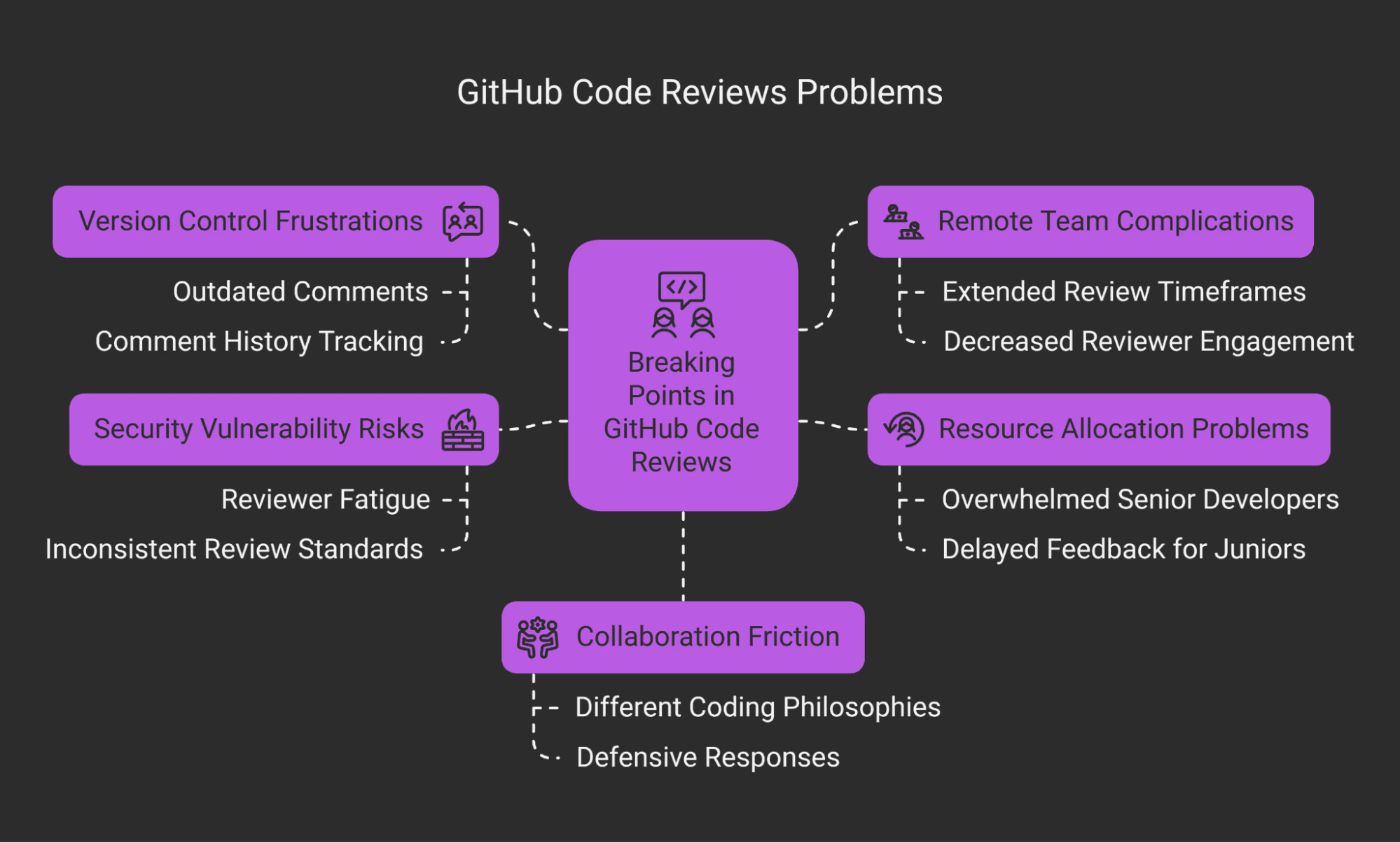
The Art of Flutter Code Review: A Guide for Reviewers & Authors
Master the art of code review in Flutter. Learn how to balance human factors with technical rigor, ensuring code quality without sacrificing team morale.

Blog
December 16, 2025
Conventional Commits: A Guide to Meaningful Git History
Instead of writing vague messages like 'fixed bug' or 'updates', this convention provides a rigorous rule set for creating an explicit commit history. This makes it easier to understand *what* happened in a project and *why*, and it enables potent automation tools (like automatic changelogs and version bumping).